There are two pinball machines in the arcade.
Haunted house
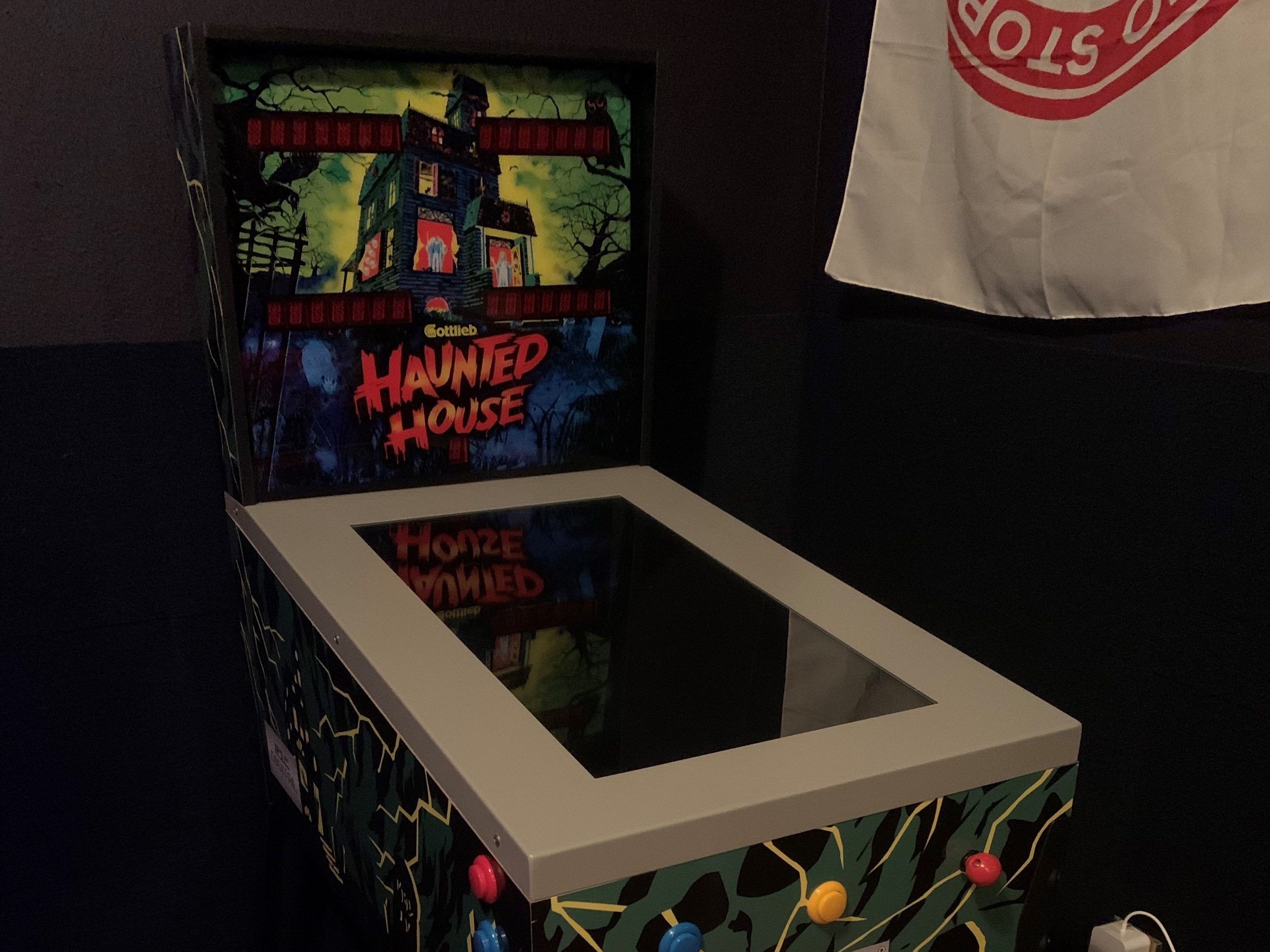
This table’s pretty simple to use. The power switch is on the back-right side of the cabinet, near the backglass. The onscreen instructions will guide you through choosing a table.
Virtual pinball cabinet
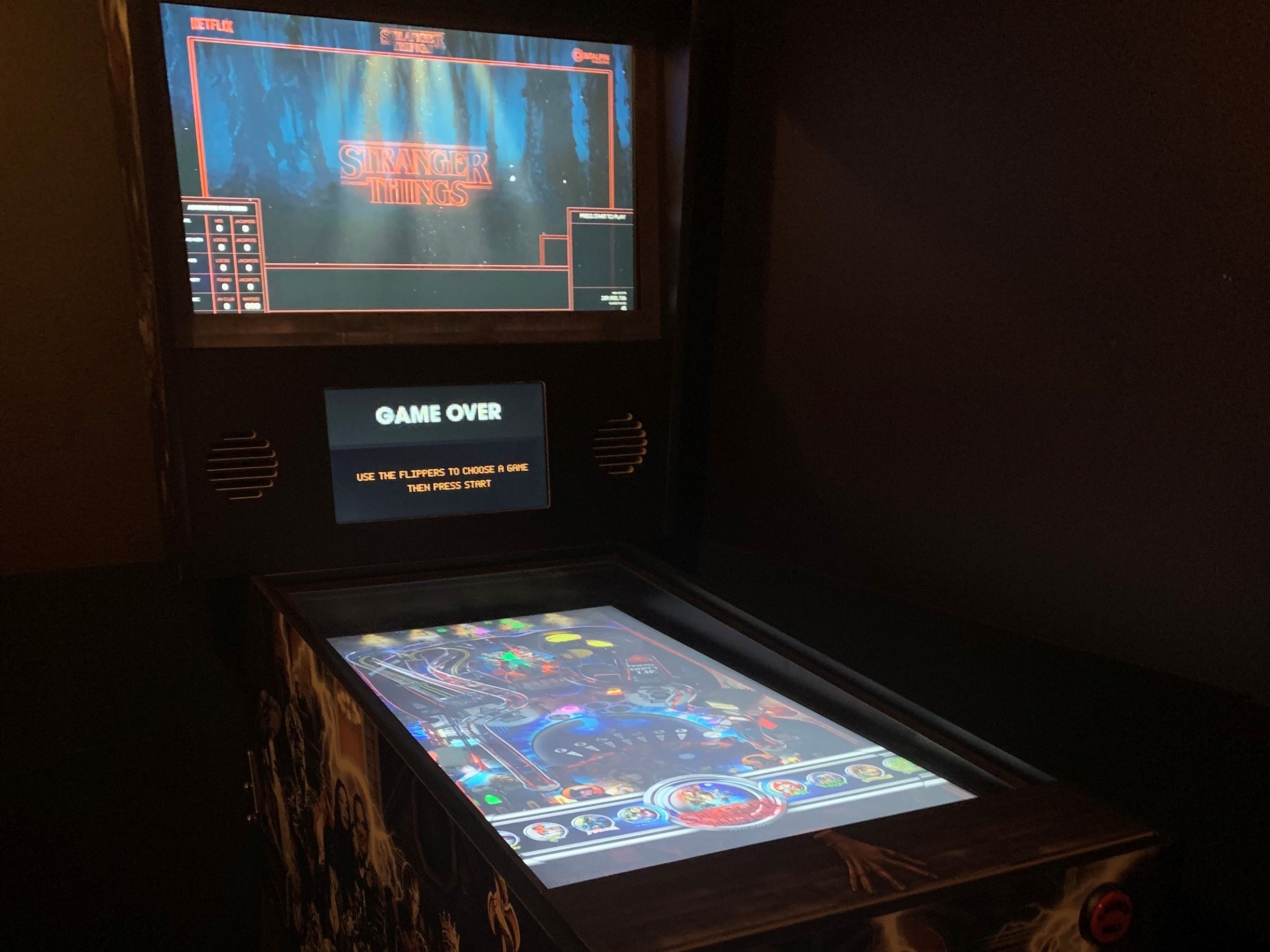
This one’s more complicated (but more fun, too). Here are some steps to get the machine up and running.
- Make sure the power is on to the games (game switch near the door. Top is on, bottom is off).
- Make sure the pinball playfield is on. The Samsung remote under the pinball machine controls the playfield.
- Make sure the computer under the pinball machine is turned on. The power button is on the top-left corner of the front of the computer.
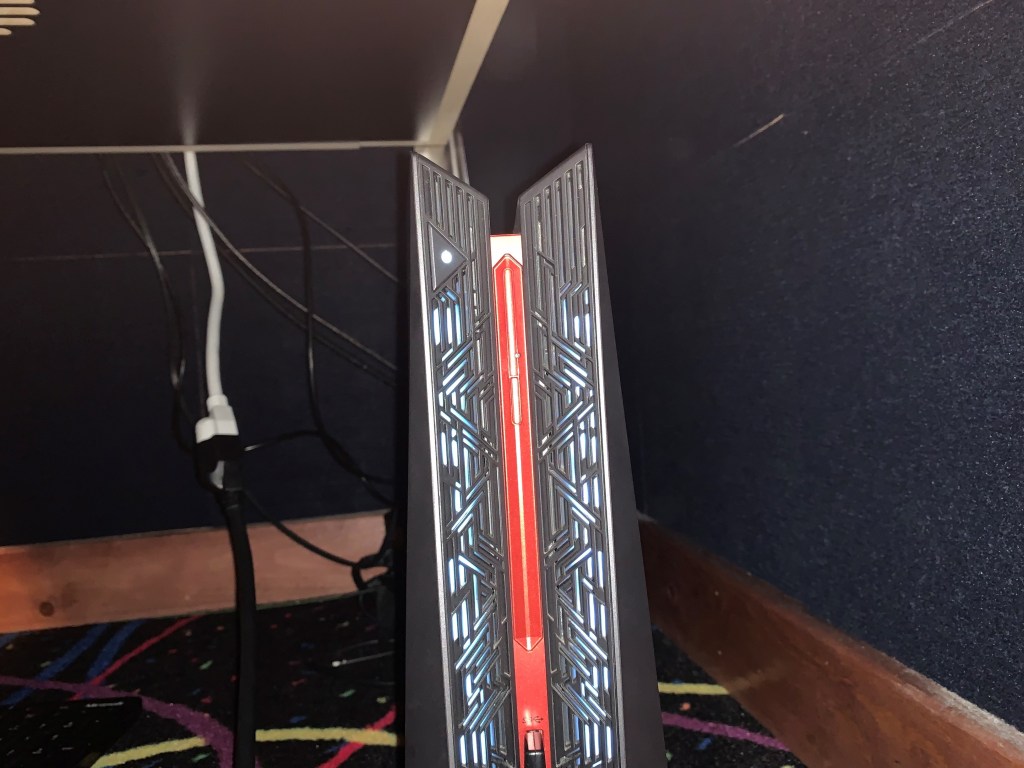
- Sometimes the PC is on but not responding. Press and hold the power button until the PC turns off, then turn it back on again.
- Pinball should start automatically, but if it doesn’t (and lately there’s been a little exception dialog asking to continue/quit popping up on reboot) you can use the mouse under the pinball table to fix it.
- If the exception dialog is up, click quit.
- Run the pinball fixer on the desktop. It will reset everything and should get you back to the game selection Pinup Popper.
- The white buttons on the sides of the cabinet are the flippers. The will scroll through available games.
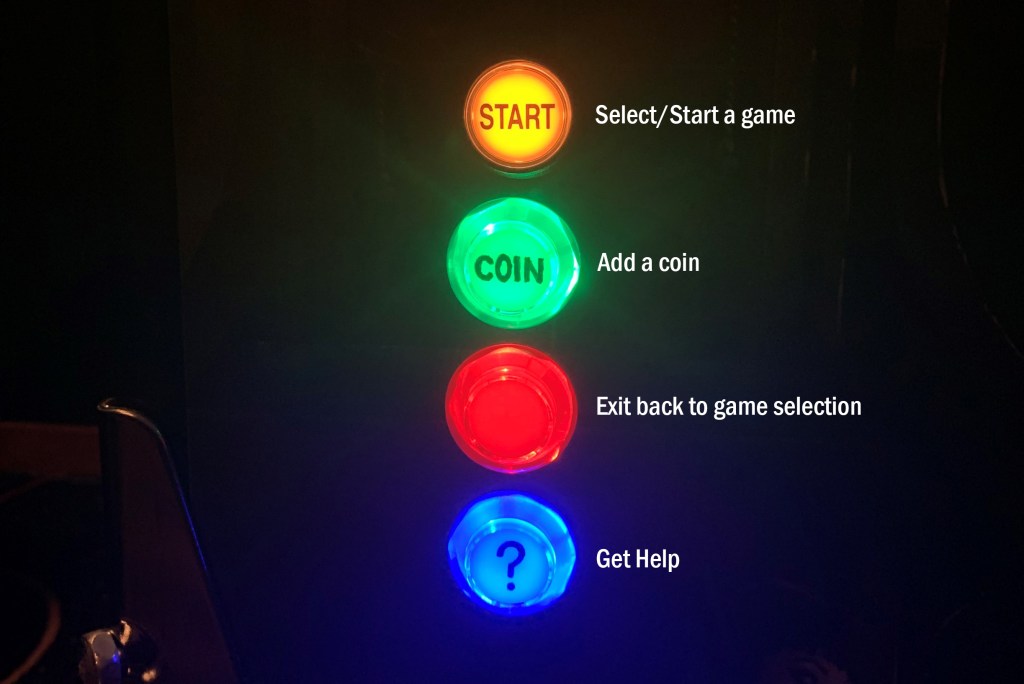
- The yellow start button will launch a game.
- Most games need “coins.” The green button will add a coin.
- The yellow start button will start the game when it’s ready.
- The red button leaves the game to pick another.
- There are two ball launchers. The mechanical plunger doesn’t work for all games (the Zen Pinball FX3 tables, to be specific, which were too laggy with it on), but you can always use the launch ball button. You can hold the launch ball button to pull the plunger back and release it with the strength you want.
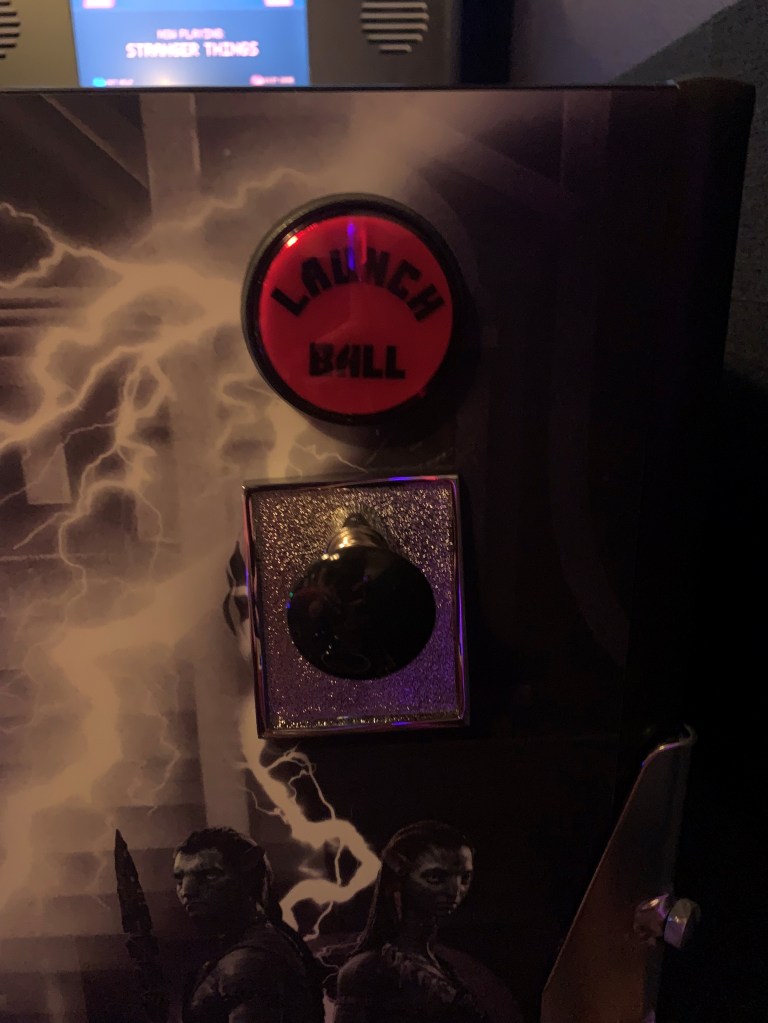
- The blue help button can be used to fix all kinds of problems, like if the buttons aren’t responding, you’re being asked to continue or start a new game, etc. The help screen will appear in the lower portion of the backglass.
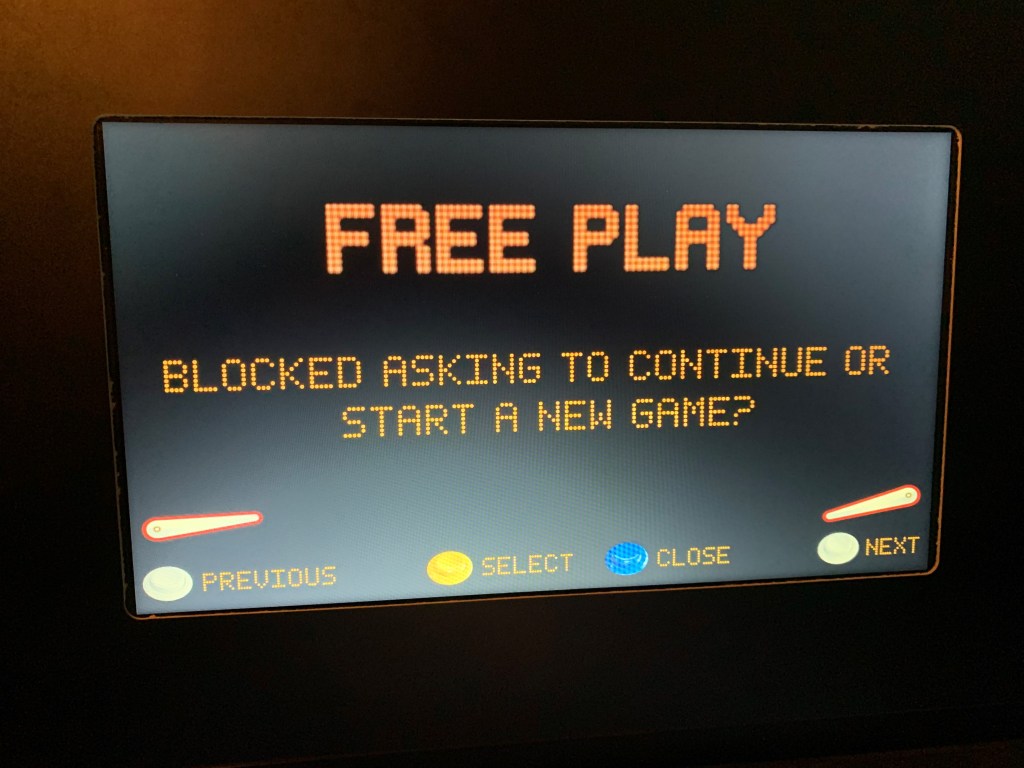
- Use the white flippers to look through common problems, the yellow start button to apply a fix, or the blue help button to close the help screen.
- Steam can cause problems (these are the Pinball FX3 tables). If you’re having a problem launching one of these you can try this:
- If you’re not already back on the desktop, on the game selection screen press ‘x’ on the keyboard to exit.
- Use the mouse to make sure the computer is connected to a Wi-Fi network (neverland or neverland-guest).
- Kill or re-run Steam.
- Run the Pinball Fixer and try again.
- We’re always working on improving the pinball fixer and help screen to eliminate all of these problems, but the software is a bit ragged. Let us know if you find other tips that helped you!
Have fun!!

 matt & andrea