Let’s put this right at the top since it’s super important:
Don’t look into the projector when it’s turned on!!
The projector is under the screen at the front of the room. It uses lasers to create the image, so don’t look into the projector when it’s on.
The projector on the ceiling isn’t connected to anything.
Getting started
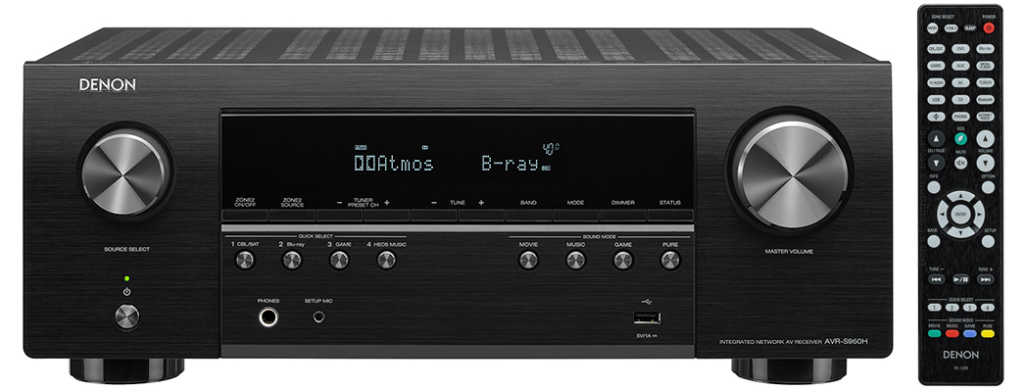
The Denon receiver in the back of the theater room receives all of the various inputs and sends them on to the projector.
You can turn it on with the power button (bottom-left) or by using the Denon remote (power is top-right on the remote). The remote needs to pointed at the receiver.
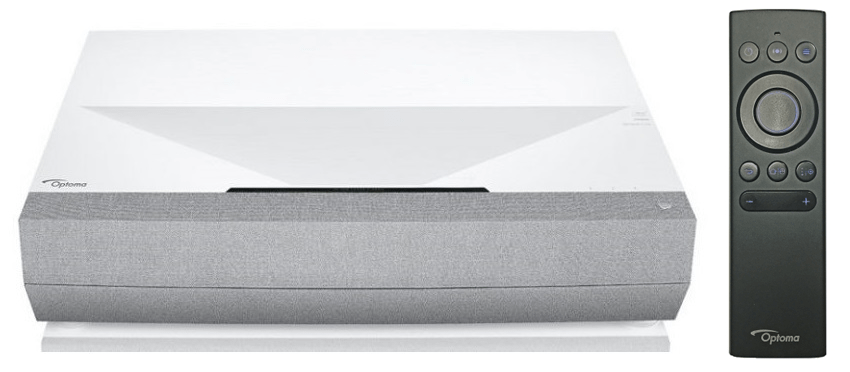
Next, turn on the projector. You can use the Optoma remote (power button is top-left) or press the button on the projector (power button is top-right).
Inputs
The projector should always be left on HDMI 1. You can change between the different devices using the Denon receiver.
If the projector is showing a generic home screen or otherwise doesn’t seem to be on the right input press the Home button on the Optoma remote (middle button of the lower 3), use the left/right sides of the big circle button to navigate to HDMI 1, and then press the center of the big circle button to select it.
Streaming
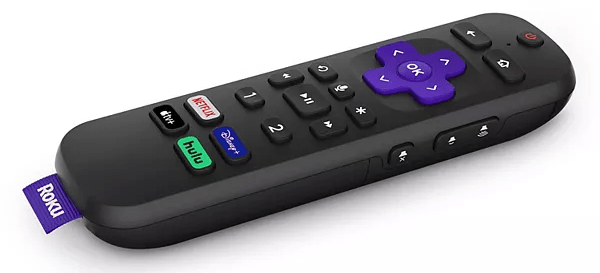
There’s a Roku plugged into the back that’s set up for all kinds of streaming services like Netflix, Disney+, and more. Set the source on the Denon to CBL/SAT by pressing the button on the remote, the button on the front of the receiver, or turning the source select dial on the left side of the receiver. It will say “Roku” on the receiver when it’s selected.
The Roku remote doesn’t have to be pointed at the back corner of the room like the Denon does.
DVD/VHS
There are powered converters needed to use DVD, VHS, or LaserDisc. We leave them unplugged, since they get warm if they’re left plugged in long-term. All you need to do is open the door next to the components and plug in this one plug to use one of these (and then please unplug it when you’re done):

Otherwise follow the same steps as above, but set the input on the Denon to DVD. This is connected to the GoVideo DVD player/VCR. There’s probably a remote in the bottom of the cabinet on the side of the room but honestly we’ve never used it; we’ve just powered on the player, put in media, and used the control buttons on the front.
LaserDisc
Same as above; if you’re looking for the finest in mid-90s video (and you want to flip over some giant discs every 20-30 mins), the Pioneer LaserDisc player is connected to the Denon on the Blu-Ray input. Again there’s probably a remote in the cabinet, but we’ve never used it, either.

 matt & andrea